Thursday, 31 January 2019

The remote procedure call failed. [0x800706be]


Good day everyone and welcome to (or welcome back to) SQL Something!

Firstly, HAPPY 2019! I wish all my visitors the best for the coming year. May you all find your own special brand of success and happiness. 😊

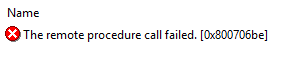
Alright let’s get into it. I recently redid my PC and I had to re-install my various SQL instances as well as a couple variations of Visual Studio. Sometime after all of that was done, I opened SQL Server 2017 Configuration Manager and saw the following:

The remote procedure call failed. [0x800706be]
Woe is me...

Monday, 22 October 2018

Emergency Shelters And Relief Supply Drop Off Points

Hey all, today I'll be using this space for something pretty serious that is affecting my country.

Of late, Trinidad and Tobago has been besieged by endless rain, resulting in mass flooding and loss of property. Many lives are being severely affected.

To that end, I threw up a quick map using Power BI to show relief centers. The map can be found below. Please click the double sided arrow in the bottom right corner to expand to full-screen.

You can also help to add to the map by filling out the short form below:
Shelters and Drop Off Points

Thank you to all who contribute to the data collection, and I wish everyone the best during this time.


EDIT (28/12/2018):
As the emergency times have passed, I made some small changes to the map. I have added a 'State' slicer which defaults to 'Active' relief points. You can un-check it to see the full list of all those who helped during our rough times. In fact to make sure they don't go unforgotten, I've listed all the companies that I have recorded at the bottom of this post. Truly remarkable on everyone's part.


Saturday, 20 October 2018

Mini Post: Detecting Orphaned Users; sp_change_users_logins

Good day all! We are all the way in October 2018 and we are due for another SQL Something! Man is the year flying by!

Today, we are looking at detecting orphaned users. In short, these are usually users that do not have an associated SQL login.

You can detect these 'orphans' using the sp_change_users_login stored procedure with the @Action='Report' option.

Saturday, 25 August 2018

SSIS, Import and Export Wizard Issue: "Text was truncated". Using TypeGuessRows to Solve.


Hey everyone, Geon back from the dead with another SQL Something!

Today we take a peek at a very, *very* annoying and very old issue with importing data into a SQL Database. This problem occurs when using either the Import/Export Wizard or SSIS.

The issue can take a couple forms:
  • "Text was truncated or one or more characters had no match in the target code page."
  • "A truncation error occurred on the specified object of the specified component."
  • Etc.
The keywords here are 'truncated' or 'truncation'.

Now you may think "Well, obviously it's probably your column lengths in the destination, so just increase that.".

Well, what if your destination columns are maxed out? What if it wasn't the destination?

I'd believe you to be honest...

Friday, 2 March 2018

Mini Post: Power BI Bookmarks Video! (Synoptic Panels Too!)

Heyyy everyone!

I'm still around! Welcome back to SQL Something!

Today I'm sharing a video I made for an in-house presentation to show the power of Power BI Bookmarks!

Now, the video doesn't actually show how it was created (I think I'll make a post on that as well as share the files), but it can give you an idea of things that are possible.

Anyway, without further ado, please see the video below:

Data with Data: Power BI Bookmarks and Synoptic Panels


Wednesday, 25 October 2017

Mini Post: The Visual Studio Component Cache Is Out Of Date

Good day all and welcome back to SQL Something!

Quick post: "The Visual Studio component cache is out of date. Please restart Visual Studio.". Got this error when I tried to run a query on a DB in SQL Server Management Studio 2016. There is discussion on possible causes here, but that's about it.

There are a couple fixes for it.

Choose one of the following:

Solution 1: Restart Management Studio.

  • Close SQL Server Management Studio.
    • This should automatically clear temp files related to Management Studio.
    • Optional: Open Task Manager and stop all Visual Studio tasks.
  • Start SQL Server Management Studio.
  • Attempt query again.

Solution 2: Delete the Management Studio temp folder.

  • Close SQL Server Management Studio.
  • Browse to C:\Users\YourUserName\AppData\Local\Temp\
  • Browse to SSMS folder.
  • Delete folder and contents.
  • Start SQL Server Management Studio.
  • Attempt query again.

Solution 3: Lastly, you can try running the Disk Cleanup Utility.

  • Close SQL Server Management Studio.
  • Search for Disk Cleanup Utility.
  • Open Disk Cleanup Utility.
  • Select Temporary Files only.
  • Click OK, Delete files.
  • Start SQL Server Management Studio.
  • Attempt query again.


One of the above should work for you. :-)

DISCLAIMER: As stated, I’m not an expert so please, PLEASE feel free to politely correct or comment as you see fit. Your feedback is always welcomed. :-)

Thursday, 31 August 2017

Mini Post: DBCC SHRINKFILE Error: Msg 8985, Could not locate file in sys.database_files.

*Slides by*

Hey everyone, sliding in a post on the last day of the month of August. I already missed July :'-(

Anyways, today we will be looking at the following error(s) I got when attempting to shrink a database file via DBCC SHRINKFILE:

  • Msg 8985, Level 16, State 1, Line #
    Could not locate file 'FileName_1' for database 'DatabaseName' in sys.database_files. The file either does not exist, or was dropped.

  • Msg 5041, Level 16, State 1, Line #
    MODIFY FILE failed. File 'FileName_1' does not exist.

These errors have to do with incorrect filenames you might be using for the DBCC SHRINKFILE parameters. And by incorrect, I mean it is possible that you, like me, were not using the logical filename.

One way to double check the logical filename would be to run the following on the database in question to get the info from sys.database_files:

SELECT 
   file_id AS FileID,
   name AS LogicalFileName, 
   size/128.0 AS FileSizeMB,
   size/128.0 - CAST(FILEPROPERTY(name, 'SpaceUsed') AS int)/128.0
                   AS EmptySpaceMB
FROM 
   sys.database_files;

The query gives you some additional information such as file_id (which you can use instead of the logical name) as well as file size and 'empty' space to better determine your file reduction planning.

Hope this helps. :-)

DISCLAIMER: As stated, I’m not an expert so please, PLEASE feel free to politely correct or comment as you see fit. Your feedback is always welcomed. :-)