Showing posts with label SQL Server. Show all posts

Tuesday, 14 July 2020

Mini Post: Listing ALL Databases On A Server

Heyyyy everyone, Geon still here. I hope everyone has been well during these times and keeping safe. Remember to wash your hands and wear your mask!

Now, I realized I made a few listing queries over the years: how to list all stored procedures, how to list all tables with a given name, how to list all connections... but I just realized I never did the simplest of them all:

How to list all databases on a server.

To do this, we can query the sys.databases system table. This table can provide us with a wealth of database knowledge such as:

  • Database Name
  • Database ID
  • Creation Date
  • State
  • Collation


You can filter on any of these fields as you would a regular query.

Please see below for a simple example query I've had to use recently:

SELECT 
s.name as DatabaseName,
s.database_id as DatabaseID,
s.create_date as CreationDate,
s.collation_name as Collation,
s.recovery_model as RecoveryModel,
s.state_desc
FROM 
sys.databases s
WHERE
create_date >= '01/01/2020'
ORDER BY name;

I hope this was useful to someone. :-)


DISCLAIMER: As stated, I’m not an expert so please, PLEASE feel free to politely correct or comment as you see fit. Your feedback is always welcomed. :-)


Tuesday, 31 December 2019

Using LAG To Find The Difference In Timestamps Between Rows

Hey everyone, tis another merry entry of SQL Something!

Slipping in this last post for 2019!

HAPPY NEW YEAR AND ALL THE BEST FOR THE UPCOMING 2020!

Today we are going to look at using LAG and specifically how to use it to find the difference between times, where one time value... IS IN THE PREVIOUS ROW.

Turns out it's really simple using LAG (available in SQL 2015 onwards).

Saturday, 31 August 2019

The File "...\TestDB.mdf" Is Compressed But Does Not Reside In A Read-Only Database Or Filegroup

Hey everyone, welcome back to SQL Something!

Today we are looking at an old error that I've been meaning to post:

The file "...\TestDB.mdf" is compressed but does not reside in a read-only database or filegroup. The file must be decompressed.


This error popped up when I attempted to bring a DB online via the following command:

USE [master]
GO
ALTER DATABASE TestDB SET ONLINE
GO

 As the error message indicates, there seems to be some kinda file compression going on somewhere. This compression could either be on the folders where the MDF and LDF files for the database reside or, the compression could be on the files themselves.

Thankfully, checking the folders and files for compression and then turning compression off, is the same.

  • Right-click the folder containing the MDF/LDF files or right-click the files themselves.
  • Choose 'Properties'. (Fig. 1)
  • Choose 'Advanced...'.
  • Uncheck "Compress contents to save disk space".
  • Click 'Ok'.
  • Click 'Apply' and 'Ok'.

Fig. 1: Smash that Advanced button


Fig. 2: Remove the compression


Repeat the above for any folders or files related to the database. Note: If a folder is compressed, the folder name will be in blue font. If a file is compressed, the file icon will be slightly different.

Hopefully that should end your woes. :-)


DISCLAIMER: As stated, I’m not an expert so please, PLEASE feel free to politely correct or comment as you see fit. Your feedback is always welcomed. :-)
Thursday, 31 January 2019

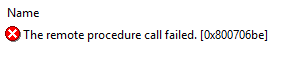
The remote procedure call failed. [0x800706be]


Good day everyone and welcome to (or welcome back to) SQL Something!

Firstly, HAPPY 2019! I wish all my visitors the best for the coming year. May you all find your own special brand of success and happiness. 😊

Alright let’s get into it. I recently redid my PC and I had to re-install my various SQL instances as well as a couple variations of Visual Studio. Sometime after all of that was done, I opened SQL Server 2017 Configuration Manager and saw the following:

The remote procedure call failed. [0x800706be]

Woe is me...

Monday, 22 October 2018

Emergency Shelters And Relief Supply Drop Off Points

Hey all, today I'll be using this space for something pretty serious that is affecting my country.

Of late, Trinidad and Tobago has been besieged by endless rain, resulting in mass flooding and loss of property. Many lives are being severely affected.

To that end, I threw up a quick map using Power BI to show relief centers. The map can be found below. Please click the double sided arrow in the bottom right corner to expand to full-screen.

You can also help to add to the map by filling out the short form below:
Shelters and Drop Off Points

Thank you to all who contribute to the data collection, and I wish everyone the best during this time.


EDIT (28/12/2018):
As the emergency times have passed, I made some small changes to the map. I have added a 'State' slicer which defaults to 'Active' relief points. You can un-check it to see the full list of all those who helped during our rough times. In fact to make sure they don't go unforgotten, I've listed all the companies that I have recorded at the bottom of this post. Truly remarkable on everyone's part.


Saturday, 20 October 2018

Mini Post: Detecting Orphaned Users; sp_change_users_logins

Good day all! We are all the way in October 2018 and we are due for another SQL Something! Man is the year flying by!

Today, we are looking at detecting orphaned users. In short, these are usually users that do not have an associated SQL login.

You can detect these 'orphans' using the sp_change_users_login stored procedure with the @Action='Report' option.

Saturday, 25 August 2018

SSIS, Import and Export Wizard Issue: "Text was truncated". Using TypeGuessRows to Solve.


Hey everyone, Geon back from the dead with another SQL Something!

Today we take a peek at a very, *very* annoying and very old issue with importing data into a SQL Database. This problem occurs when using either the Import/Export Wizard or SSIS.

The issue can take a couple forms:
  • "Text was truncated or one or more characters had no match in the target code page."
  • "A truncation error occurred on the specified object of the specified component."
  • Etc.
The keywords here are 'truncated' or 'truncation'.

Now you may think "Well, obviously it's probably your column lengths in the destination, so just increase that.".

Well, what if your destination columns are maxed out? What if it wasn't the destination?

I'd believe you to be honest...

Wednesday, 25 October 2017

Mini Post: The Visual Studio Component Cache Is Out Of Date

Good day all and welcome back to SQL Something!

Quick post: "The Visual Studio component cache is out of date. Please restart Visual Studio.". Got this error when I tried to run a query on a DB in SQL Server Management Studio 2016. There is discussion on possible causes here, but that's about it.

There are a couple fixes for it.

Choose one of the following:

Solution 1: Restart Management Studio.

  • Close SQL Server Management Studio.
    • This should automatically clear temp files related to Management Studio.
    • Optional: Open Task Manager and stop all Visual Studio tasks.
  • Start SQL Server Management Studio.
  • Attempt query again.

Solution 2: Delete the Management Studio temp folder.

  • Close SQL Server Management Studio.
  • Browse to C:\Users\YourUserName\AppData\Local\Temp\
  • Browse to SSMS folder.
  • Delete folder and contents.
  • Start SQL Server Management Studio.
  • Attempt query again.

Solution 3: Lastly, you can try running the Disk Cleanup Utility.

  • Close SQL Server Management Studio.
  • Search for Disk Cleanup Utility.
  • Open Disk Cleanup Utility.
  • Select Temporary Files only.
  • Click OK, Delete files.
  • Start SQL Server Management Studio.
  • Attempt query again.


One of the above should work for you. :-)

DISCLAIMER: As stated, I’m not an expert so please, PLEASE feel free to politely correct or comment as you see fit. Your feedback is always welcomed. :-)

Thursday, 31 August 2017

Mini Post: DBCC SHRINKFILE Error: Msg 8985, Could not locate file in sys.database_files.

*Slides by*

Hey everyone, sliding in a post on the last day of the month of August. I already missed July :'-(

Anyways, today we will be looking at the following error(s) I got when attempting to shrink a database file via DBCC SHRINKFILE:

  • Msg 8985, Level 16, State 1, Line #
    Could not locate file 'FileName_1' for database 'DatabaseName' in sys.database_files. The file either does not exist, or was dropped.

  • Msg 5041, Level 16, State 1, Line #
    MODIFY FILE failed. File 'FileName_1' does not exist.

These errors have to do with incorrect filenames you might be using for the DBCC SHRINKFILE parameters. And by incorrect, I mean it is possible that you, like me, were not using the logical filename.

One way to double check the logical filename would be to run the following on the database in question to get the info from sys.database_files:

SELECT 
   file_id AS FileID,
   name AS LogicalFileName, 
   size/128.0 AS FileSizeMB,
   size/128.0 - CAST(FILEPROPERTY(name, 'SpaceUsed') AS int)/128.0
                   AS EmptySpaceMB
FROM 
   sys.database_files;

The query gives you some additional information such as file_id (which you can use instead of the logical name) as well as file size and 'empty' space to better determine your file reduction planning.

Hope this helps. :-)

DISCLAIMER: As stated, I’m not an expert so please, PLEASE feel free to politely correct or comment as you see fit. Your feedback is always welcomed. :-)

Friday, 23 June 2017

Mini Post: Find All Tables That Have A Given Column

Hey everyone! Welcome back to SQL Something!

Really quick post today. Today we look at finding a table(s) that a column belongs to. Had to find a solution to do this recently and thought it would helpful to share.

The answers we seek can be found in the following SQL Server system views:

We will retrieve the related column names from sys.columns and the table names from sys.tables.

Putting it together we get the following:

SELECT       c.name AS ColumnName, t.name AS TableName
FROM          sys.columns c
                     JOIN sys.tables t
                     ON c.object_id = t.object_id
WHERE       c.name LIKE '%YourColumn%'
ORDER BY ColumnName, TableName;

The above will list all tables that have a column name like the given column name ('YourColumn').

And there we go. :-)

DISCLAIMER: As stated, I’m not an expert so please, PLEASE feel free to politely correct or comment as you see fit. Your feedback is always welcomed. :-)

Original Reference:  https://stackoverflow.com/questions/26293085/find-all-table-names-with-column-name

Wednesday, 10 May 2017

Syncing Logins/Users Across SQL Server Instances (For Availability Groups and Mirroring Failovers)

Hey Everyone! Guess who's still around!

Welcome back to SQL Something (with a post dedicated to my friend Greg who guilt-ed me into finally starting back posts). In all seriousness, it's really been far too long.

Today's post briefly touches on SQL Server Always On Availability Groups in SQL Server 2016. You can find a pretty good tutorial on how to set up Always On Availability Groups in an Azure VM via the links here and here. They are pretty thorough (great job team Microsoft!), but they do have a couple very, very small errors/typos that I might point out in a subsequent post.

Today, however, we are merely focusing on a simple login/user issue in order to help streamline failing over to your secondary. The fix is about syncing logins between availability groups. This fix can also be applied to Mirroring (a deprecated feature after 2016)

Wednesday, 2 November 2016

Azure SQL Database Firewall Issue (Connectivity Issue)

Hey everyone! Yes, I'm still around and yes, this is still SQL Something!

I'm sounding like a broken record now but, as usual, life has been pretty busy. Definitely going to try to finish the year right however, by having at least one post for each of the last couple of months.

Now! Let's get on with it.

Today we are looking at connecting to a Azure SQL Database. In a nutshell, an Azure SQL Database is a DB that exists on a logical DB server, not an actual DB Server VM. It takes away the hassle of having to do server related admin tasks and allows you to focus on the DB itself and the data it contains.

For the purpose of this exercise, let's assume we created a Azure SQL DB and when we attempted to connect to it via Management Studio, we received the following:
Fig. 1: Danger Will Robinson!


Now, we can take the following steps:
  • Ensure that you are using the correct server name, username and password.
If the above doesn't work, we will have to verify our Azure SQL Database Firewall rules.
  • Log on to portal.azure.com with your valid user.
  • Navigate to your azure SQL Databases.
  • Click the database in question.
  • Select 'Set Server Firewall'.

Fig. 2: Firewall awesomeness.

  • Click add Client IP.

Fig. 3: Add yo IP
  • Click 'Save'.

Now we can retry our connection.

And that's all there is to it. :-)

DISCLAIMER: As stated, I’m not an expert so please, PLEASE feel free to politely correct or comment as you see fit. Your feedback is always welcomed. :-)

Monday, 22 August 2016

Mini Post: SQL Server Agent Job History

Hey all, welcome back to SQL Something. Man, has it been a while. Too long.

Unfortunate to say however, this post will not be particularly epic to make up for the long absence. Like, not epic at all. But, you know what? Let's go into it. If it helps one person, then that's plenty. :-)

Today we are looking at SQL Server Agent Job history.

A SQL Server Job allows us to automate a process to run at particular times, either as a one time event or repeatedly for some specified duration (or indefinitely). Setting up jobs for performing backups is an example of a great way to use jobs.

A job's history can show us a number of things. It can show us if the job ran successfully and if not, it can give us an indicator as to why. It can also show us some useful info such as the creds used to invoke the job, as well as the duration of time taken for the job to run (this last I find pretty helpful).

Tuesday, 31 May 2016

SQL Server Fixed Roles And Related Stored Procedures

Good day everyone and welcome back to SQL Something!

Do you like Roles? Do you want to know a little more about SQL Server's built in Roles and what they do? Do you want to know some nifty built in sprocs that also give some extra info about the Roles?

Then this is a post for you!


Firstly let us look briefly at SQL Server's nine (9) built in Roles:
  • SysAdmin - This is the big guy. Members of this Role have all the permissions across the instance. A SysAdmin is specified during installation.
  • ServerAdmin - Members of this Role are allowed to perform instance configuration tasks and can also stop an instance.
  • SecurityAdmin - Members can alter and elevate permissions for Logins. Can elevate permissions to SysAdmin.
  • ProcessAdmin - Members can stop instance processes.
  • SetupAdmin - Members can add/remove DBs to linked servers.
  • BulkAdmin - Members can bulk insert.
  • DiskAdmin - Members can perform tasks involving instance related files.
  • DBCreator - Members can add/drop/alter/restore databases on an instance.
  • Public - The little guy. All logins are considered part of the public Role group. Not a 'real' built in role.
Next, we will examine a couple stored procedures that add to the above info.

Wednesday, 27 April 2016

Viewing Collation (Server/Database/Column) Via T-SQL

Hey everyone and welcome back to SQL Something!

Real quick one today and that is viewing Collation information via T-SQL (I will do a follow up post eventually on how to do it via Management Studio with pictures).

Now onto the T-SQL.

Friday, 11 March 2016

SSIS Error: Cannot Convert Between Unicode and Non-Unicode Data Types

Hellooo out there! Welcome back to (the not quite monthly) SQL Something!

This month we are looking at a conversion error I ran into when trying to alter an old SSIS package:

Fig. 1: Error!


Fig. 2: Change isn't easy...

Finally an error that's pretty self explanatory! The error says it can't convert from non-Unicode to Unicode, so obviously we need to find some way to make the two the same type. :-)

Monday, 25 January 2016

Using The LEAD() And/Or LAG() Functions

Heyyy, sliding in at the eleventh hour (as usual) we have the first SQL Something for 2016!
Hard to believe that I've actually managed to, sort of, maintain this for 3 years.

Anyhow, we end the year with a couple functions that follow a similar format to RANK(): LEAD()/LAG().

LEAD() and LAG() allow users to list the value of the next row or previous row respectively with some given offset from the current row.

Simple example time.

Monday, 30 November 2015

Using The RANK() Function

Hey everyone! Welcome to (or back to) SQL Something!

Quick filler for this month: Using The RANK() Function.

I will demonstrate this function using a very simplistic example.

Firstly let's look at a table I created called [Files] that consists of the below dummy data:

Fig. 1: Important data...

Saturday, 31 October 2015

Mini Post: SSIS Excel Destination Failed Validation And Returned Error Code 0xC020801C

Hey everyone! Welcome back to SQL Something!

Before the month is up (and I apologize for missing last month) let's get in a quick post. This time we look at a simple SSIS validation error: "SSIS Excel Destination Failed Validation And Returned Error Code 0xC020801C".

This little guy popped when I attempted to export data to an Excel Destination in SSIS:

Fig. 1: Final Destination

Looking up the error code can yield the following: "SSIS Error Code DTS_E_OLEDB_EXCEL_NOT_SUPPORTED: The Excel Connection Manager is not supported in the 64-bit version of SSIS, as no OLE DB provider is available.".

The error was produced because excel does not have a 64 bit driver. If your OS is 64 bit, SSIS will, by default, attempt to run all drivers as 64 bit. It is simply a matter of going to the project properties and changing the Run64BitRuntime property to FALSE:

Fig. 2: Finding Properties

Fig. 3: Make the change to FALSE

And that's all there is to it. :-)


DISCLAIMER: As stated, I’m not an expert so please, PLEASE feel free to politely correct or comment as you see fit. Your feedback is always welcomed. :-)

Monday, 31 August 2015

Mini Post: The data types ntext and varchar are incompatible in the equal to operator.

Hello and welcome back to SQL Something!

It's Geon coming in at the eleventh hour to drop a post before the month is up.

Today we are going to look at the following error(s):

Msg 402, Level 16, State 1, Line <number>
The data types ntext and varchar are incompatible in the equal to operator.

OR

Msg 306, Level 16, State 2, Line <number>
The text, ntext, and image data types cannot be compared or sorted, except when using IS NULL or LIKE operator.

Fig. 1: #ntextProblems


As the text is basically saying, these errors occur when you try to use an equal operator ("=") to compare a varchar value to a ntext value.
So what can you use to compare? The answer is right in the second error. You can use a LIKE.


See the example below:

...WHERE ntextValue LIKE 'SomeTextValue'...

Simple enough. :-)


DISCLAIMER: As stated, I’m not an expert so please, PLEASE feel free to politely correct or comment as you see fit. Your feedback is always welcomed. :-)